With Visual Studio .NET (including
2002, 2003 and 2005) files on a network share may give an error. This error is
caused by a security setting designed to protect the machine that Visual Studio
.NET is running on. This is a set of instructions on setting the network share
as trusted so that you can operate without the error message.
Environment: Visual Studio .NET
Message: The project location is not fully trusted by the
.NET runtime.
Sometimes loading projects from network shares results in the
following error message:
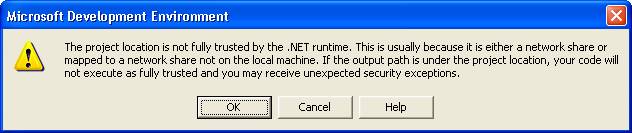
The following instructions will show you how to solve this
problem:
Find the Microsoft .NET Framework Configuration tool (mscorcfg.msc).
If you have installed Visual
Studio .NET 2003 the Configuration tool is called the Microsoft .NET Framework 1.1 Configuration in the Administrative
tools menu. The path will look something like this:
C:\WINDOWS\Microsoft.NET\Framework\v1.1xxx\mscorcfg.msc
If you have installed Visual
Studio 2005 the Configuration tool is called the Microsoft .NET Framework 2.0 Configuration in the Administrative
tools menu. The path will look something like this:
C:\Program
Files\Microsoft Visual Studio 8\SDK\v2.0\Bin\mscorcfg.msc
If all else fails do a system
search for mscorcfg.msc
and you should be able to find it.
Open up the Runtime Security Policy section to the All
Code group (under Code Groups under Machine). Then select Add
a Child Code Group.

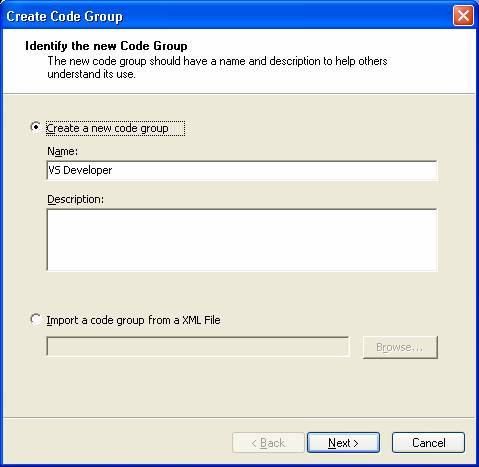
Create a new code group
and click Next:
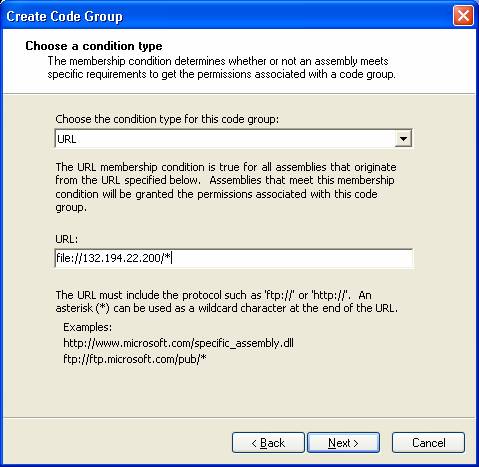
Choose the URL type and enter the address of your
server. Your server might be something like file:\\servername\*
or it may be in the form of an IP address, depending on how your network is set
up.
Select Next.
Select Full Trust for the permission set:

Select Next.
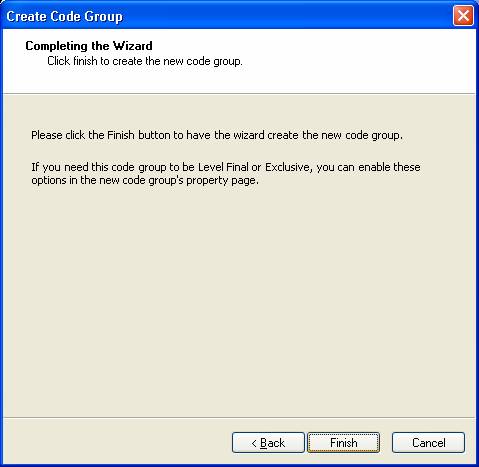
Select Finish to add the
code group:
Projects on the file server should now load and run without
problems.